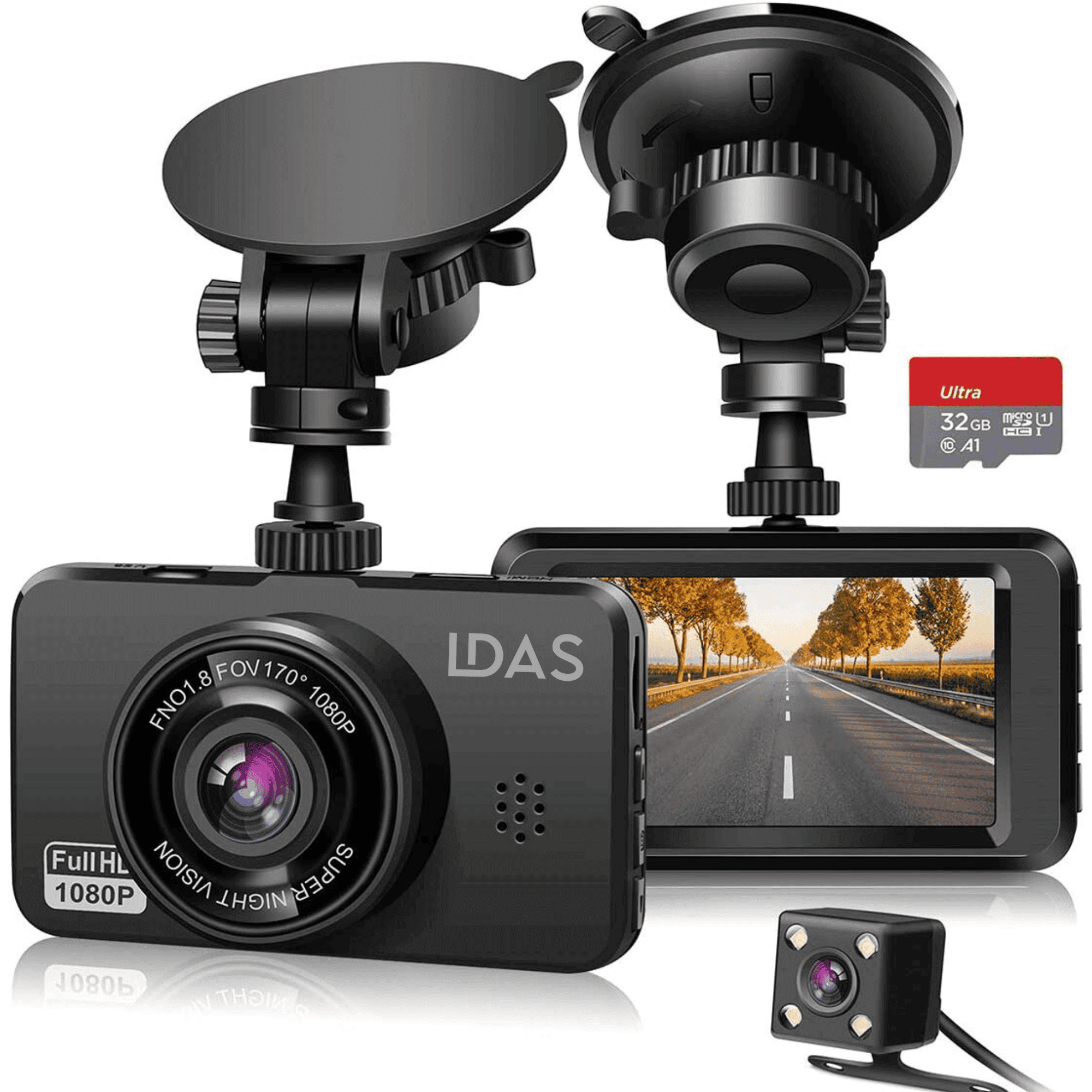
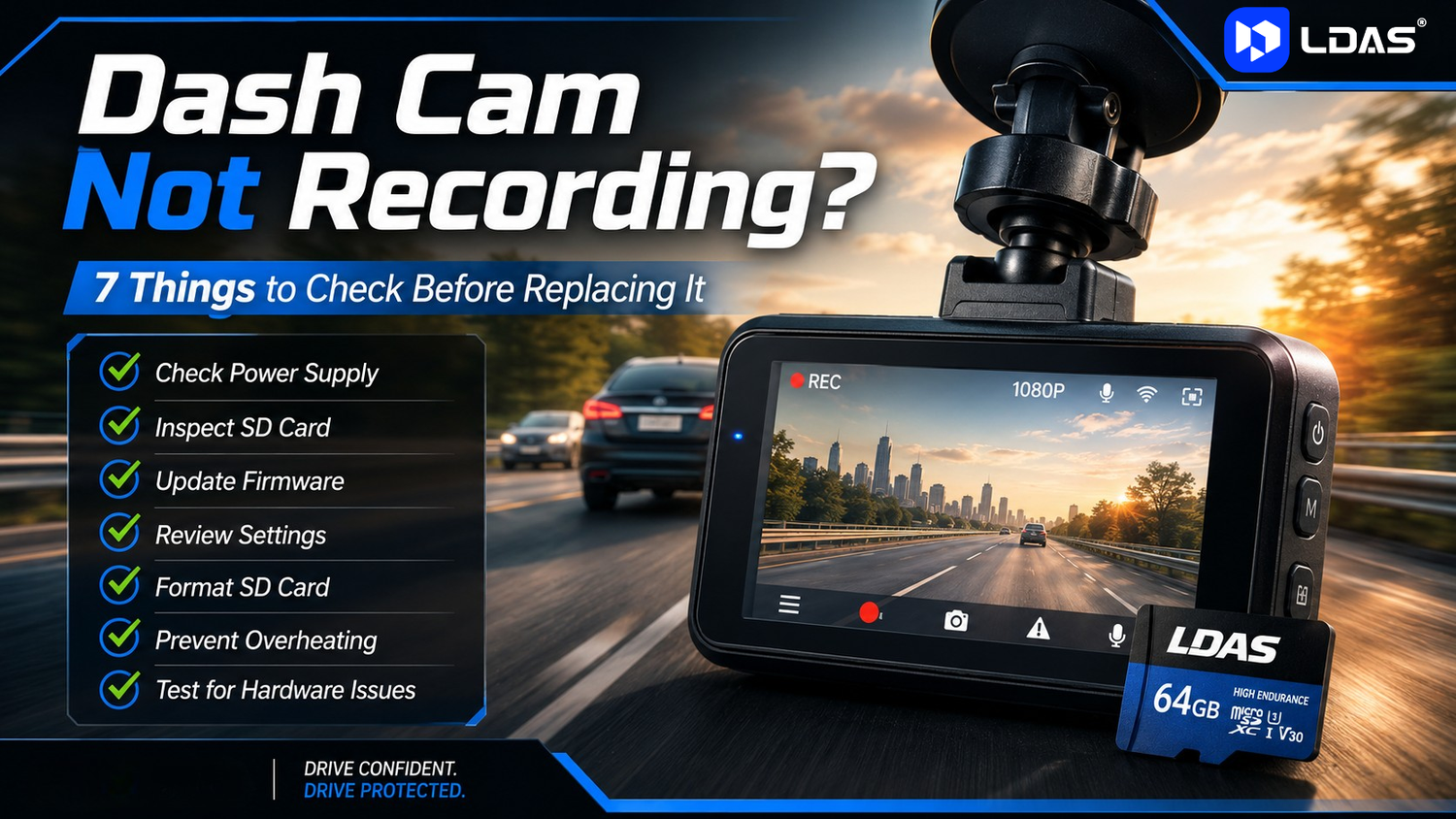
A dash cam is meant to protect you on the road—but what if your dash cam is not recording when you need it most?
If your dash cam isn’t working, missing footage, or recording intermittently, don’t replace it yet. Most issues are easy to solve with a simple dash cam fix.
In this troubleshooting guide, we’ll walk you through 7 proven fixes for LDAS dash cams available at www.ldas.ca, plus tips to keep your dash cam recording reliably on every drive.
1. Check the Power Connection (Most Common Dash Cam Fix)
One of the main reasons a dash cam is not recording is unstable power.

What to check:
-
Is your LDAS dash cam firmly connected to the car charger?
-
Is the USB cable damaged or loose?
-
Does the dash cam power on when the engine starts?
-
Try another charging cable or 12V socket
🔧 Dash Cam Fix Tip:
LDAS dash cams automatically start recording when powered on. If it doesn’t turn on, power is the first thing to check.
2. SD Card Issues (Top Reason Dash Cam Not Working)
If your dash cam turns on but doesn’t save videos, the SD card is usually the problem.

Common SD card issues:
-
SD card is full
-
The card is corrupted
-
Using a regular SD card instead of a high-endurance card
-
SD card not formatted properly
Dash Cam Fix:
-
Remove and reinsert the SD card
-
Format the SD card inside the LDAS dash cam
-
Always use a high-endurance SD card designed for dash cams
👉 CTA:
🛒 Shop compatible high-endurance SD cards for LDAS dash cams on LDAS.ca
3. Recording Settings Are Disabled
Sometimes the dash cam isn’t broken—settings are turned off.
Check these settings:
-
Loop recording: ON
-
Video recording mode: Enabled
-
Correct resolution selected
-
Parking/motion mode configured properly

🔧 Dash Cam Fix Tip:
Restore factory settings if menus were changed accidentally.
4. SD Card Needs Regular Formatting
Even the best SD cards need maintenance.
Signs your SD card needs formatting:
-
Random recording stops
-
Missing or corrupted files
-
Memory error messages
Dash Cam Fix:
-
Format the SD card every 30 days
-
Always format from the dash cam (not a computer)
📥 CTA:
Download the Free LDAS Dash Cam Maintenance Checklist to avoid recording problems.
5. Firmware Is Outdated

Outdated Firmware can cause:
-
Dash cam not recording
-
Freezing or rebooting
-
SD card errors
Dash Cam Fix:
-
Check for firmware updates for your LDAS dash cam model
-
Follow the update instructions carefully
-
Never disconnect power during updates
6. Overheating Can Stop Recording
Heat can temporarily stop recording to protect the device.
What to do:

-
Avoid mounting directly in harsh sunlight
-
Ensure airflow around the camera
-
Let the dash cam cool before restarting
✅ LDAS dash cams are built for Canadian weather, but correct placement improves performance.
7. Faulty SD Card or Hardware Issue
If your dash cam is still not working, the issue may be:
-
A worn-out SD card
-
Rare internal hardware issue
Final Dash Cam Fix:
-
Test with a new high-endurance SD card
-
Contact LDAS support if your device is under warranty
Quick Dash Cam Troubleshooting Checklist
✔ Dash cam powers on
✔ Stable power connection
✔ High-endurance SD card installed
✔ SD card formatted monthly
✔ Loop recording enabled. Firmware updated
✔ Dash cam not overheating

👉 CTA:
🛒 Shop LDAS Dash Cams & Accessories at www.ldas.ca
Final Thoughts
If your dash cam is not recording, don’t panic. Most dash cam issues that aren’t working are resolved with a quick fix—especially by checking the SD card and power supply.
Using LDAS-recommended accessories and regular maintenance ensures your dash cam records when it matters most.
🚗 Drive safe. Stay protected. Record every moment with LDAS.